
D6
Our easy to use guide will get you up and running in no time!
At d6, our mission is clear: we aim to help schools to be the best they can be.
Our comprehensive school management system includes Communication and Payments, Administration, Curriculum, and Finance modules.We also seamlessly integrate various educational technology solutions to streamline processes and alleviate the burden on school personnel.
Index
Netcash Service Key Activation
Setting up a Netcash Bank Account
Linking Debit Orders to Parents/Learners
Submitting Debit Orders
Authorising Debit Orders in Netcash
Netcash Service Key Activation
Once you’ve created an account with Netcash, the first thing you will need to do to integrate with d6, is activate the Netcash service keys.
Netcash provides a set of service keys that are specific to your merchant account that will be used by d6 to interact with the Netcash APIs.
Two Netcash service keys are required
- Account service
- Debit orders
- Netcash account number (top-right hand corner)
Each key needs to be enabled on Netcash and then inserted into d6.
In your Netcash account Navigate to Netcash> Account Profile > Netconnector
Account service key:
This service key is used to validate bank account information that you capture against customer accounts, as well as pull statements from Netcash for reconciliation purposes.
Navigate to Netcash> Account Profile > Netconnector> Account service
- Tick the active box.
- Insert an email address to receive notifications.
- Tick the postback URL active box if your software requires a postback URL.
- Select the statement download format if your software appears in the dropdown – or
- Insert the postback URL where the statement should be electronically sent.
- Click on the Submit button.
- The service key is generated and emailed to the email address linked to the service key.
Debit Order service key:
The debit orders key is used in D6 to submit debit order batches to Netcash.
Navigate to Netcash> Account Profile > Netconnector> Debit Orders
- Click on Account profile.
- Click on NetConnector > Debit orders
- Complete the required fields.
- Tick the postback URL active box if required.
- Select the pre-defined postback URL if your software appears in the dropdown list – or
- Insert the postback URL where the responses should be electronically sent.
- Choose from the following options: Ignore errors, Auto forward action date, or Lock batch on upload. (See notes below for details).
- Click on the Submit button.
- The service key is generated and emailed to the email address linked to the service key
Note: Please ensure that “Ignore errors” is unchecked, “Auto forward action date” is checked and “Lock batch on upload” is unchecked as below when activating this key.
Setting up a Netcash Bank Account
Before submitting debit orders, a Netcash bank account must be set up in d6+.
Steps:
Navigate to Finances > Cashbook > Accounts.
- Click Add Account.
- Ensure you select Debit Order as the account type (not just Electronic).
Enter the following information:
1. Account Number
2. Account Service Key
3. Debit Order Service Key
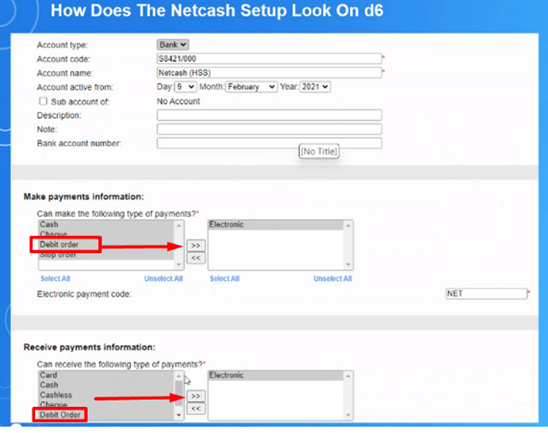
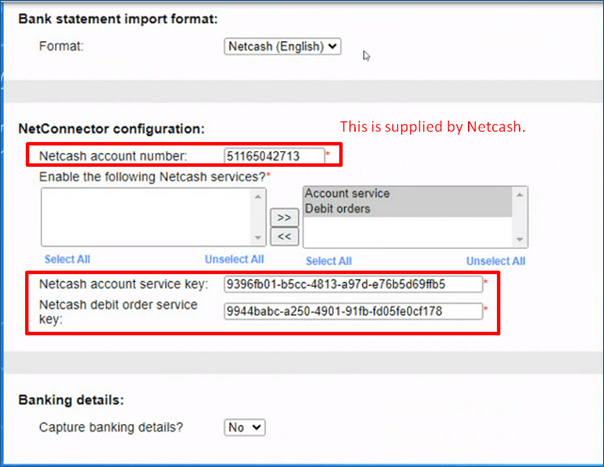
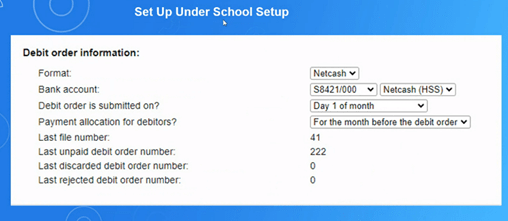
Once you created an account, activate it under school setup – this is My School > General – School setup:
Linking Debit Orders to Parents/Learners
Each learner who will pay via debit order must have their profile updated.
Steps:
- Go to My School > Learners > Learners.
- Select the learner whose account needs a debit order.
- Click Edit.
Billing Tab:
Select the debit order option next to billing (change from No to ACB).
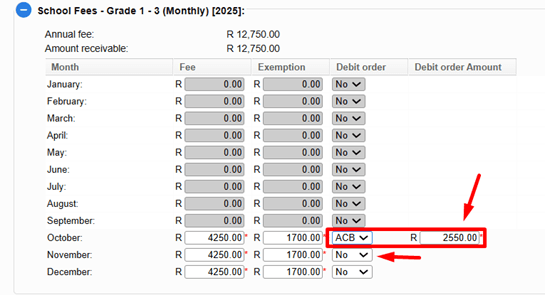
- Ensure the debit order amount matches the intended amount.
Accountable Person Tab:
- Scroll to Banking Details.
- Change Capture Banking Details from No to Yes.
- Complete all banking information.
- Set the Debit Order Submission Date (the date the parent chose for their debit order).
Important: Debit orders cannot be loaded unless the parent has completed their Netcash forms and Netcash has received them.
Repeat this process for every parent who wishes to pay via debit order.
Submitting Debit Orders
Once all learners are linked:
Go to Finances > Debtors: Debit Orders.
- Click on Create Debit Order Submission.
- Verify the number of learners linked; all learners will appear in the submission list.
- The batch will then have a status as ‘Created’, you need to click on the ‘Created’ batch, and then on ‘Submit’
Note that once you click on submit, it cannot be reversed, you must be sure that it is correct before you click on ‘Submit’
Authorising Debit Orders in Netcash
After submitting the debit order batch in d6+:
Log in to Netcash and authorise the debit order batch.
1. Important: If not authorised in Netcash, the debit order will not process on parent accounts.
2. d6+ integrates with Netcash daily at 10:00 AM.
3. Receipts are automatically issued; no additional action is required by the school.
Notes & Best Practices
- Debit orders are usually processed on the 1st of each month.
- The school must submit debit orders at least two working days before the 1st.
- The system will display a reminder in My Tasks starting 14 days before the submission date.
- Once submitted, no changes can be made to the batch.
- Parents’ debit orders can be cancelled, but only up to two working days before their debit order date.