Listener (Oryx Systems)
Listener is the choice of small community security service providers and international corporates alike, for the heartbeat of their security operations. The 30 years of IP embedded in our flagship product, Listener, make it the go-to security operations management platform trusted by clients in more than 30 countries globally. Our intelligent control room stack and configurable emergency dispatching solution works in conjunction with our integrated technical field services management, service, contract and debtors’ administration platform to facilitate one point of management oversight and end-user engagement.
Listener’s integration with Netcash has automated the payment collection process through the Netcash Debit Order and Pay Now functionality.
Netcash Service keys
Once the client’s Netcash account is open, the service keys are requested from the client.
Note:
- Netcash will share the service keys with the client directly, and the client is responsible for forwarding the same to Oryx Systems.
- The number and details of service keys will depend on whether the client opted to use the Paynow Click to Pay gateway through Netcash.
Account service key
The View account service key settings allow you to generate your service keys if this is required. If it has already been generated, you are able to view it here. You are also able to edit the email address, statement download or deactivate the service key.
In Netcash Navigate to Account profile> NetConnector > Account service.
- Tick the active box.
- Insert an email address to receive notifications.
- Tick the Postback URL active box if your software requires a postback URL.
- Select the statement download format if your software appears in the dropdown – or
- Insert the postback URL where the statement should be electronically sent.
- Click on the Submit button.
- The service key is generated and emailed to the email address linked to the service key.
Debit Order service key
The View debit orders service key settings, allow you to generate your service keys if this is required. If it has already been generated, you are able to view it here. You are also able to edit the email address or deactivate the service key.
In Netcash Navigate to Account profile> NetConnector > Debit Order service.
- Complete the required fields.
- Tick the postback URL active box if required.
- Select the pre-defined postback URL if your software appears in the dropdown list – or
- Insert the postback URL where the responses should be electronically sent.
- Choose from the following options: Ignore errors, auto forward action date or Lock batch on upload. (See notes below for detail).
- Click on the Submit button.
- The service key is generated and emailed to the email address linked to the service key
Note:
- Select Ignore errors if you would like Netcash to process payments to valid bank accounts and ignore invalid bank accounts. Leaving this option unticked will result in all payments rejecting if any one payment is invalid.
- Auto forward action date will move your payments to the next valid action date if you have missed your cutoff time.
- Lock batch on upload will not allow any editing of details once the batch is sent to Netcash.
Pay Now Service key
The Pay Now service key settings allow you to generate your service key if this is required. If it has already been generated, you are able to view it here.
You are also able to edit the email address or deactivate the service key. This section also allows you to view or edit certain payment methods that are accepted. Your URLs can also be edited at this point.
In Netcash Navigate to Account profile> NetConnector > Pay Now service
- Select the Service key active box.
- Insert the email address to which you would like reports and notifications to be sent.
- Select Activate test mode if you wish to test credit cards only (no transactions will be processed in test mode).
- Select one of the payment methods below to activate on your Payment Gateway.

Netcash accepts Visa and Mastercard by default. American Express and Diners Club international are available on request as these cards incur additional fees. To find out more about the fees or to activate American Express and or Diners Club international please contact your Account Manager.
Client environment setup
Open Port on the client server to enable API establishing tow-way communication.
Note: If the client already use any of the mobility services through Listener, the same port can be used.
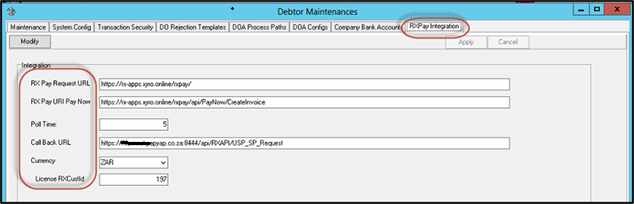
Configure Listener
The service keys and integration options are set-up in two places.
Note: all integration including the adding of the Netcash service keys is performed by the Oryx team. This is an Oryx team function.
RX Pay Integration:
RX Statement and Suspense account:
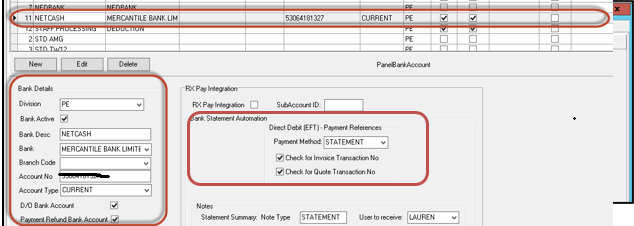
Note: Check with client prior to set-up if they want the note submission to a specific operator on each rejection received or prefer the group reporting option.
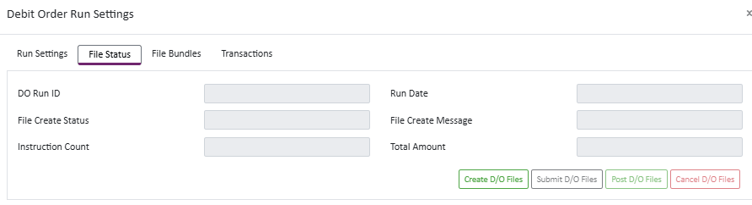
Submitting Debit batches
This process is handled automatically by Oryx based on the option you select.
- When you select Create D/O Files, the file is automatically updated with the number of transactions and the total transaction value.
- When you select Submit D/O Files, the file is submitted to Netcash, allowing the client to log in, review the file details, and authorise the transaction for processing.
No manual updates are required, as the system performs these actions automatically.
After the file has been reviewed and authorised the file, return to the processing screen and select Post File to complete the process.
The Netcash Pay Now facility is an additional plug-in for Listener Debtors, which facilitates a “click to pay” through a link or QR code scan for instant EFT payments which will direct clients to the Netcash payment gateway. The link or QR code will be generated on the invoices/statements.
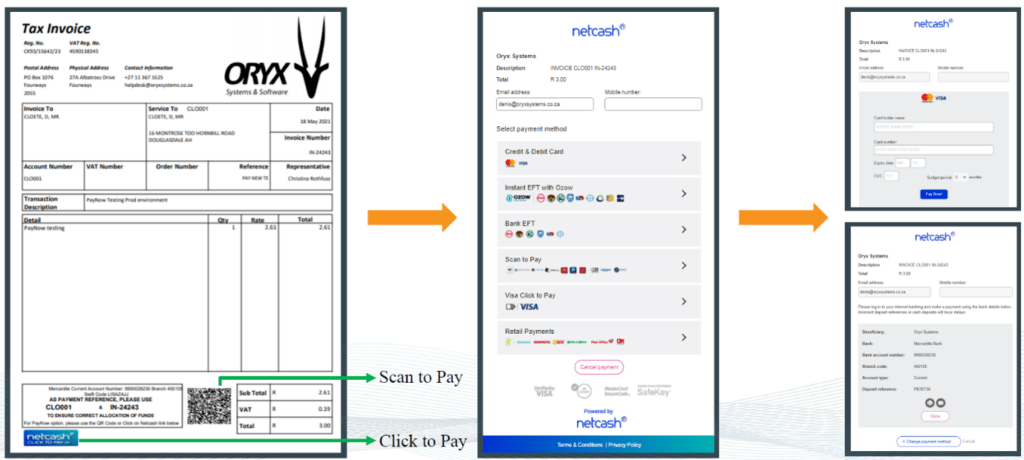
This facility automates the payment allocation against the clients account on Listener, without any manual reconciliation against bank statements.
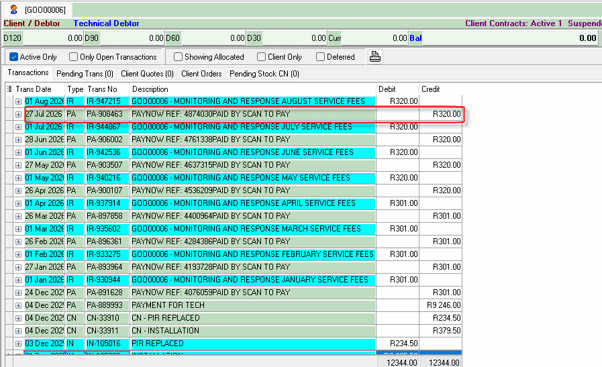
Note: The open port on the client server to enable API establishing two-way communication.