
Debitize for WHMCS Guide_ getting started
Debitize for WHMCS, built for Netcash, provides a seamless way to create and manage debit orders for your web hosting and internet service business.
The Debitize integration allows you to collect debit orders via bank account, manage risk through ID and bank account verification, and save time on admin through automated statement retrieval and reconciliation. When installing the Debitize module, you also have the option of adding the Netcash Payment Gateway to WHMCS. This provides a great way to collect once-off payments, via multiple secure payment options, as well as debit orders all on one platform.
Key features
Debit Orders built for WHMCS
Debitize provides a robust connection between your WHMCS and Netcash accounts. Clients can easily create new debit order mandates at checkout, which are automatically added to your Netcash masterfile for batch processing. You can also customise collection dates to suit your business, and preview which debit orders will be included in the next payment batch, all from within Debitize.
Bank account validation
Manage risk and decrease your unpaid debit orders with built-in bank account and identity number verification. This ensures all information is correct and valid, reducing admin at month end.
Automated statement reconciliation
Debitize simplifies your payments processes by automatically retrieving the statement from your Netcash account and providing updated reconciliation every month.
More payment options
Whether it’s for once-off billing or collecting a missed payment, you can add the Netcash Payment Gateway to WHMCS with Debitize. This allows you to diversify your offering and increase revenue, all while providing customers with multiple secure ways to pay like credit and debit card, Instant EFT, 1Voucher, Scan to Pay, and more.
Index
- Netcash service keys
- Installation & Download
- Setup
- How it works
- Reconciliation
- Credit card payments
Netcash service keys
Two Netcash service keys are required:
- Debitize > Config > Netcash Account requires a “Netcash Account Service Key”
- Debitize > Config > Debit Orders requires a “Debit Order Service Key”
The View Account service key settings, allow you to generate your service keys if this is required. If it has already been generated, you are able to view it here. You are also able to edit the email address; statement download or deactivate the service key. This key will be inserted into the Debitize add on in the next steps.
- Click on Account profile.
- Select NetConnector > Account service.
- Tick the active box.
- Insert an email address to receive notifications.
- Tick the postback URL active box if your software requires a postback URL.
- Select the statement download format if your software appears in the dropdown – or
- Insert the postback URL where the statement should be electronically sent.
- Click on the Submit button.
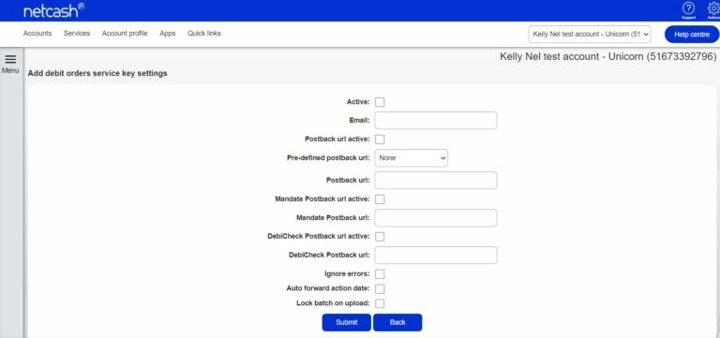
The View Debit Orders service key settings, allow you to generate your service keys if this is required. If it has already been generated, you are able to view it here. You are also able to edit the email address or deactivate the service key. This key will be inserted into the Debitize add on in the next steps.
- Click on Account profile.
- Click on NetConnector > Debit orders
- Complete the required fields.
- Tick the postback URL active box if required.
- Select the pre-defined postback URL if your software appears in the dropdown list – or
- Insert the postback URL where the responses should be electronically sent.
- Choose from the following options: Ignore errors, Auto forward action date or Lock batch on upload. (See notes below for detail).
- Click on the Submit button.
- The service key is generated and emailed to the email address linked to the service key
Note:
- Select Ignore errors if you would like Netcash to process payments to valid bank accounts and ignore invalid bank accounts. Leaving this option unticked will result in all payments rejecting if any one payment is invalid.
- Auto forward action date will move your payments to the next valid action date if you have missed your cutoff time.
- Lock batch on upload will not allow any editing of details once the batch is sent to Netcash.
Installation
- Download and unzip the plugin
- Upload to the modules folder
In WHMCS navigate to: Setup > Addon Modules
- Enable Debitize
- Enter Netcash Merchant Account Number and Debitize license key.
- Enter API user (must be existing WHMCS user) This is needed to add transactions etc.
- Enable logging for the time being
Setup
In WHMCS navigate to Addons > Debitize
- General Tab
- If “Can Detect Crons?” can yield false negatives. We cannot always detect whether your crons are set up correctly.
- Ensure that a cron job exists for Debitize. Call/modules/addons/debitize/cron.php every 30 minutes to an hour. This is what handles reconciliation
- Make sure the logs directory under Folder permissions has write permission, this is for logs, recons and Debit Order files.
- Netcash Account Tab
- Capture the details. (Netcash Pay Now service key is not required)
- Debitize tab
- Insert the Netcash service keys (Netcash Account Service Key and the Debit Order Service Key
- Tick the Debitize Debit Order method under “Allowed payment methods”
- Default payment status should stay as “draft”
- Schedule: Choose the day of the month to submit Debit Orders (If using multiple days, do not choose consecutive days. Keep it a couple of days part e.g.: 1.15 etc.
- Check Mandates: If ticked the system will check if the “has mandate” checkbox is ticked under a client’s profile and only submit invoices for those clients.
Note: Mandates are handled by the client. The system only indicates whether you have one or not for that particular client, see checkbox added for indication of mandate.
- Credit card Vault service key: not applicable.
- Reconciliation tab
- Leave empty for now
- Risk Service tab
- Leave empty for now
Other tabs
- Statements: View and fetch missed statements
- Batch preview: View current and past batches. Batches may also be submitted manually form the batch preview menu.
- Accounting services: Authorise batches after submission, using Netcash configuration details.
How it works
- Debitize hooks into the WHMCS daily cron
- The system checks whether a batch can be submitted today
- If so, please check if there are any invoices to submit (see configuration rules on the batch preview tab)
- If there are any invoices are due the batch will be submitted
- Note: that batch must be authorized manually either in your Netcash account or Accounting services tab in Debitize.
Reconciliation
Attempt to fetch statement from Netcash (using Debitize cron) if located reconcile.
Credit card payments
- Debit Orders and credit card transactions are separate plugins and payment methods
- To capture client bank details, use the “include Debitize DO payment method”
- Can not submit Debit Debit Orders with credit card details
- If you have sign up fees or ad hoc payments, use the sperate WHMCS Pay Now plugin (contained in the Debitize zip file)
Netcash Pay Now service key activation https://help.netcash.co.za/docs/account-profile-2/netconnector/pay-now/